Sign in
OpenClaw integration guide
Open sourceUpdated: 2026-03-10Introduction
OpenClaw (formerly Clawdbot / Moltbot) is an open-source personal AI assistant platform that lets you talk to AI through several messaging channels. With SeaWhale AI you can quickly connect Claude, Gemini, Qwen and other models:
- Multiple interfaces: command line (TUI), web UI, DingTalk and more
- Wide model choice: works with Claude, Gemini, Qwen, DeepSeek and other leading models
- OpenAI-compatible API: connects through the standard SeaWhale AI API format
- Flexible cost control: pay as you go, with free credit for new accounts
Important
OpenClaw was previously named Moltbot / Clawdbot, and some commands have not been fully renamed yet. If a new command such as openclaw dashboard fails with command not found: openclaw, fall back to the older equivalent (clawdbot dashboard or moltbot dashboard).
Supported models
Through the SeaWhale AI OpenAI-compatible API, OpenClaw supports:
| Category | Models |
|---|---|
| Claude family | Claude Sonnet 4.5, Claude Opus 4.5, Claude Haiku 4 |
| Gemini family | Gemini 2.5 Pro, Gemini 2.5 Flash |
| Qwen family | Qwen Max, Qwen Plus, Qwen Flash, Qwen Coder, Qwen3 |
| Others | DeepSeek, Kimi, GLM, MiniMax |
For the full model list and pricing, see the model list.
Recommended plan
| Plan | Description |
|---|---|
| Pay as you go | Pay for what you use, with no commitment |
Before you begin
Before configuring anything, make sure you have:
- A SeaWhale AI account (if you do not have one, sign up in the SeaWhale AI console)
- An API key generated on the API management page
- Enough balance or free credit on your account
Installing OpenClaw
Requirements
OpenClaw requires Node.js 22 or later. Check your version with:
bash
node --versionIf Node.js is missing or too old, download it from the Node.js website.
Installation methods
bash
curl -fsSL https://openclaw.ai/install.sh | bashpowershell
iwr -useb https://openclaw.ai/install.ps1 | iexbash
npm install -g openclaw@latestOnboarding wizard
OpenClaw starts its configuration wizard automatically after installation. You can also launch it manually:
bash
openclaw onboardRecommended answers for the initial setup:
| Prompt | Recommended answer |
|---|---|
| I understand this is personal-by-default and shared/multi-user use requires lock-down. Continue? | Choose Yes |
| Onboarding mode | Choose QuickStart |
| Model/auth provider | Choose Skip for now (configure SeaWhale AI later) |
| Filter models by provider | Choose All providers |
| Default model | Choose Keep current |
| Select channel (QuickStart) | Choose Skip for now (configure channels later) |
| Search provider | Choose Skip for now |
| Configure skills now? | Choose No |
| Enable hooks? | Press space to select, then Enter to continue |
| How do you want to hatch your bot? | Choose Do this later |
Configuring SeaWhale AI models
After initial setup, configure a SeaWhale AI model to enable conversations.
Configuration parameters
| Parameter | Value |
|---|---|
| Base URL | https://api.atalk-ai.com/v2 |
| API Key | Your SeaWhale AI credential, used for authentication and billing |
| Model ID | The model to use, e.g. claude-sonnet-4-6 or qwen3.5-plus |
Option 1: web console (recommended)
1. Start the web console
bash
openclaw dashboardYour browser opens the console automatically (usually at http://127.0.0.1:18789). If it does not, open that address manually.
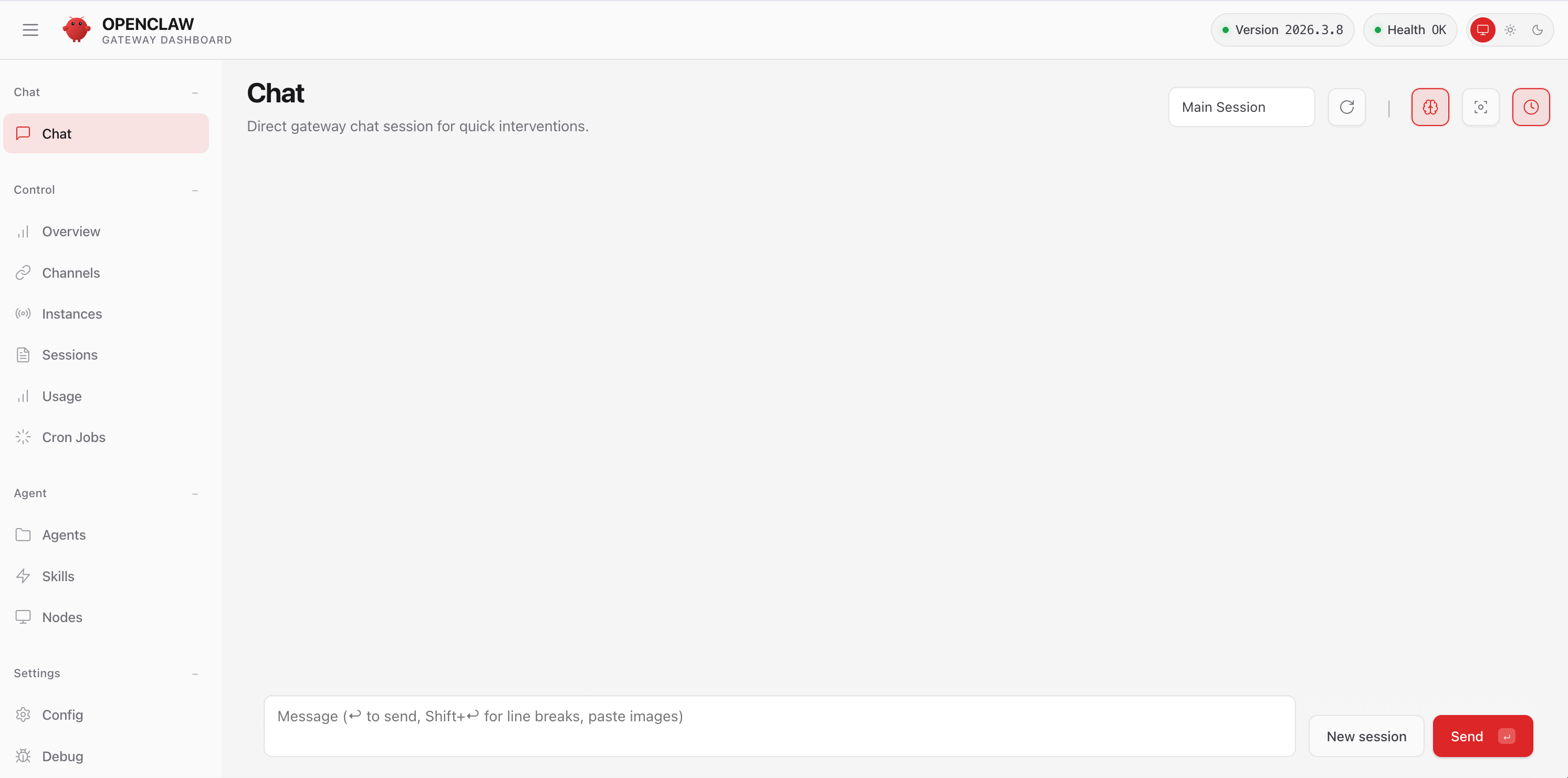
2. Open the configuration page
In the left sidebar, go to Config > RAW.
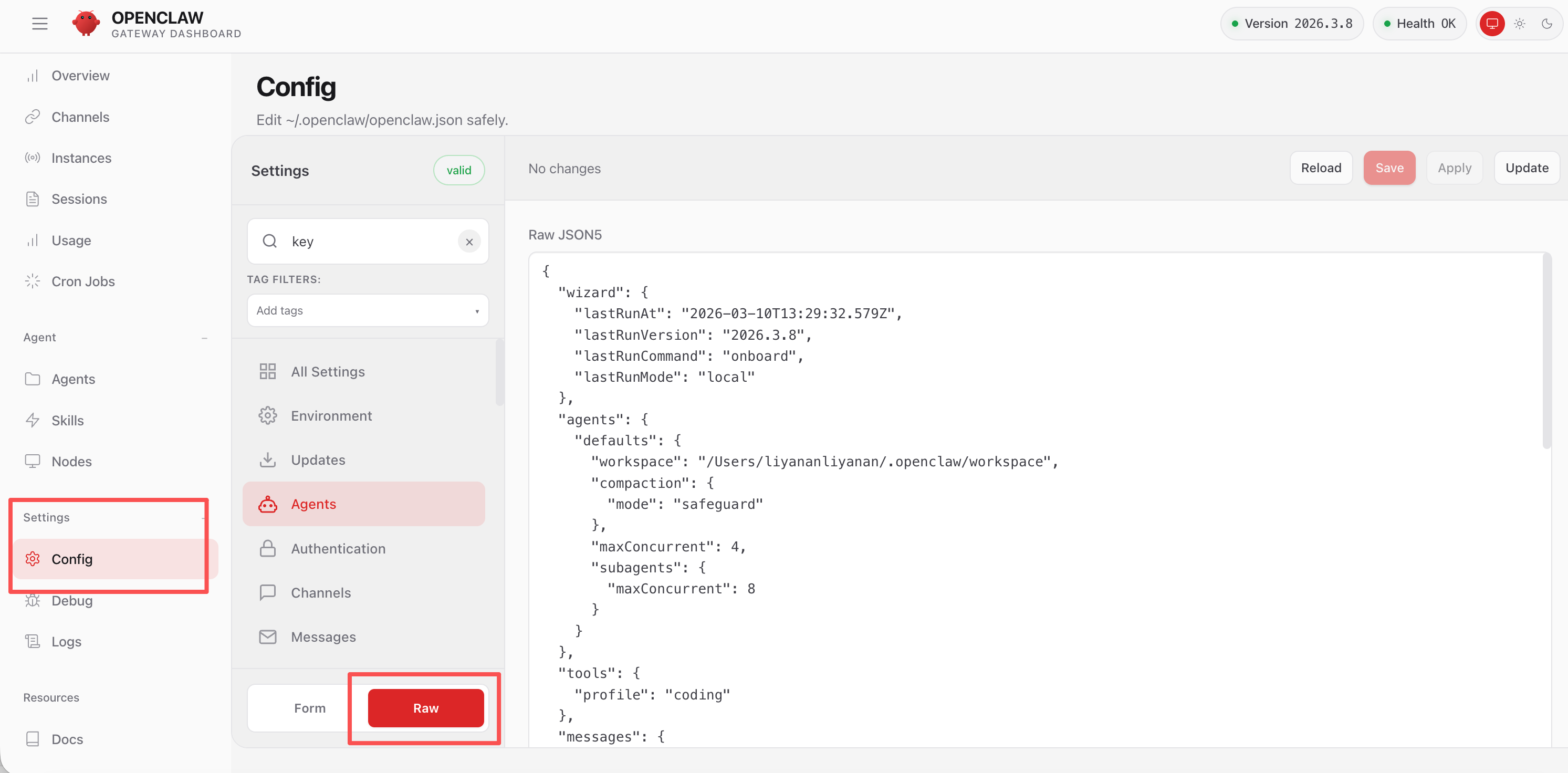
3. Add the SeaWhale AI configuration
Copy the configuration below, replacing the existing "agents": {...} section, and substitute your SeaWhale AI API key for YOUR_API_KEY:
Important
- Replace
YOUR_API_KEYwith your SeaWhale AI API key. - The example uses the
claude-sonnet-4-6andqwen3.5-plusmodels — substitute others as needed. - To use a different model, add its definition under
providers.haijing.models(withreasoningset tofalse) and add a"haijing/MODEL_ID": {}entry underagents.defaults.models.
json
"models": {
  "mode": "merge",
  "providers": {
    "haijing": {
      "baseUrl": "https://api.atalk-ai.com/v2",
      "apiKey": "YOUR_API_KEY",
      "api": "openai-completions",
      "models": [
        {
          "id": "claude-sonnet-4-6",
          "name": "claude-sonnet-4-6",
          "reasoning": false,
          "input": ["text", "image"],
          "contextWindow": 200000,
          "maxTokens": 65536
        },
        {
          "id": "qwen3.5-plus",
          "name": "qwen3.5-plus",
          "reasoning": false,
          "input": ["text", "image"],
          "contextWindow": 1000000,
          "maxTokens": 65536
        }
      ]
    }
  }
},
"agents": {
  "defaults": {
    "model": {
      "primary": "haijing/claude-sonnet-4-6"
    },
    "models": {
      "claude-sonnet-4-6": {},
      "qwen3.5-plus": {}
    }
  }
}
4. Save and apply
Click Save in the top right, then click Update to apply the configuration.
Option 2: edit the config file
You can also edit openclaw.json directly, pasting in the JSON above and saving.
Starting a conversation
Web interface
Run this in your terminal to chat through the web UI:
bash
openclaw dashboard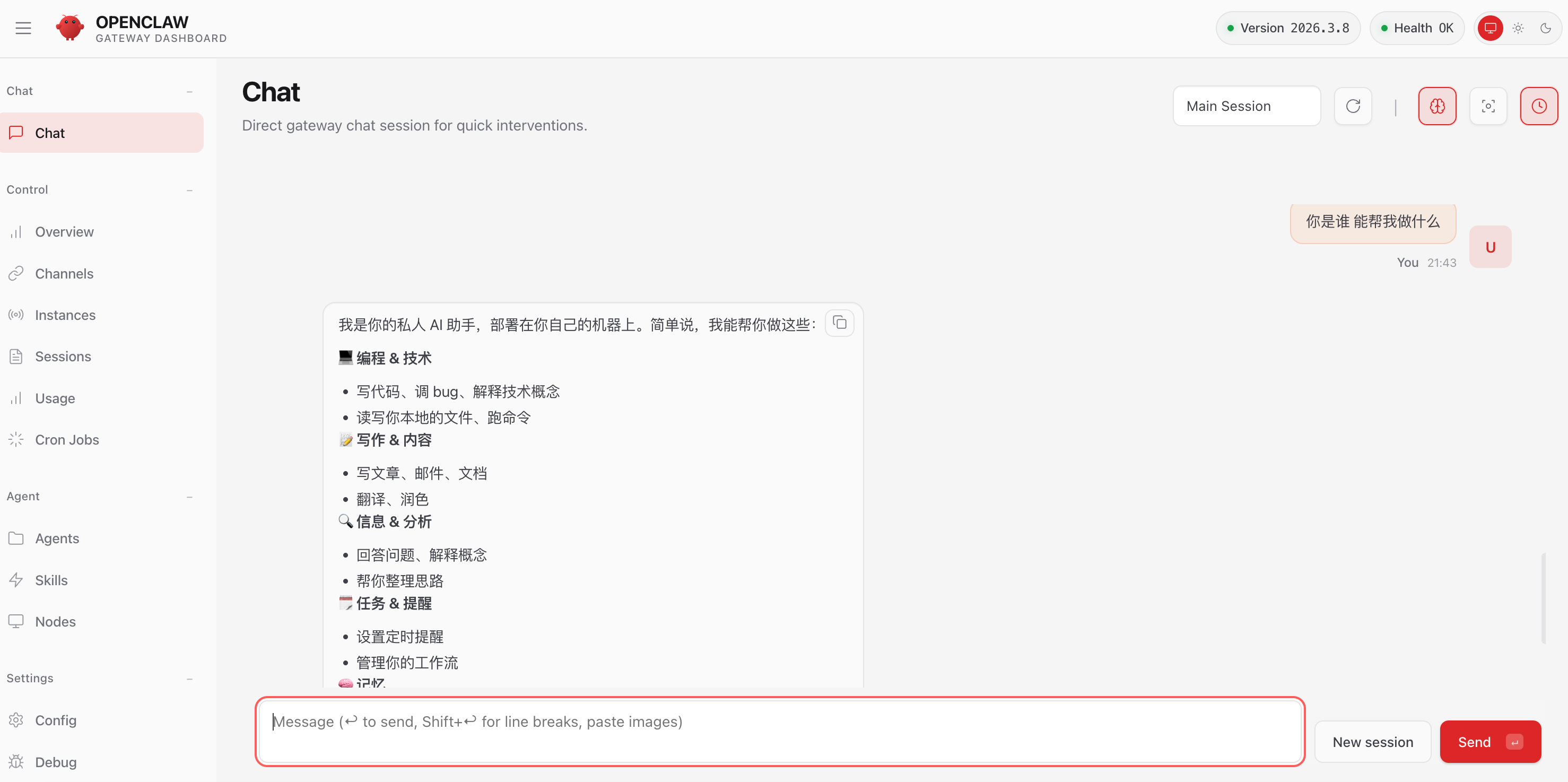
Command line (TUI)
Run this to chat from the terminal:
bash
openclaw tui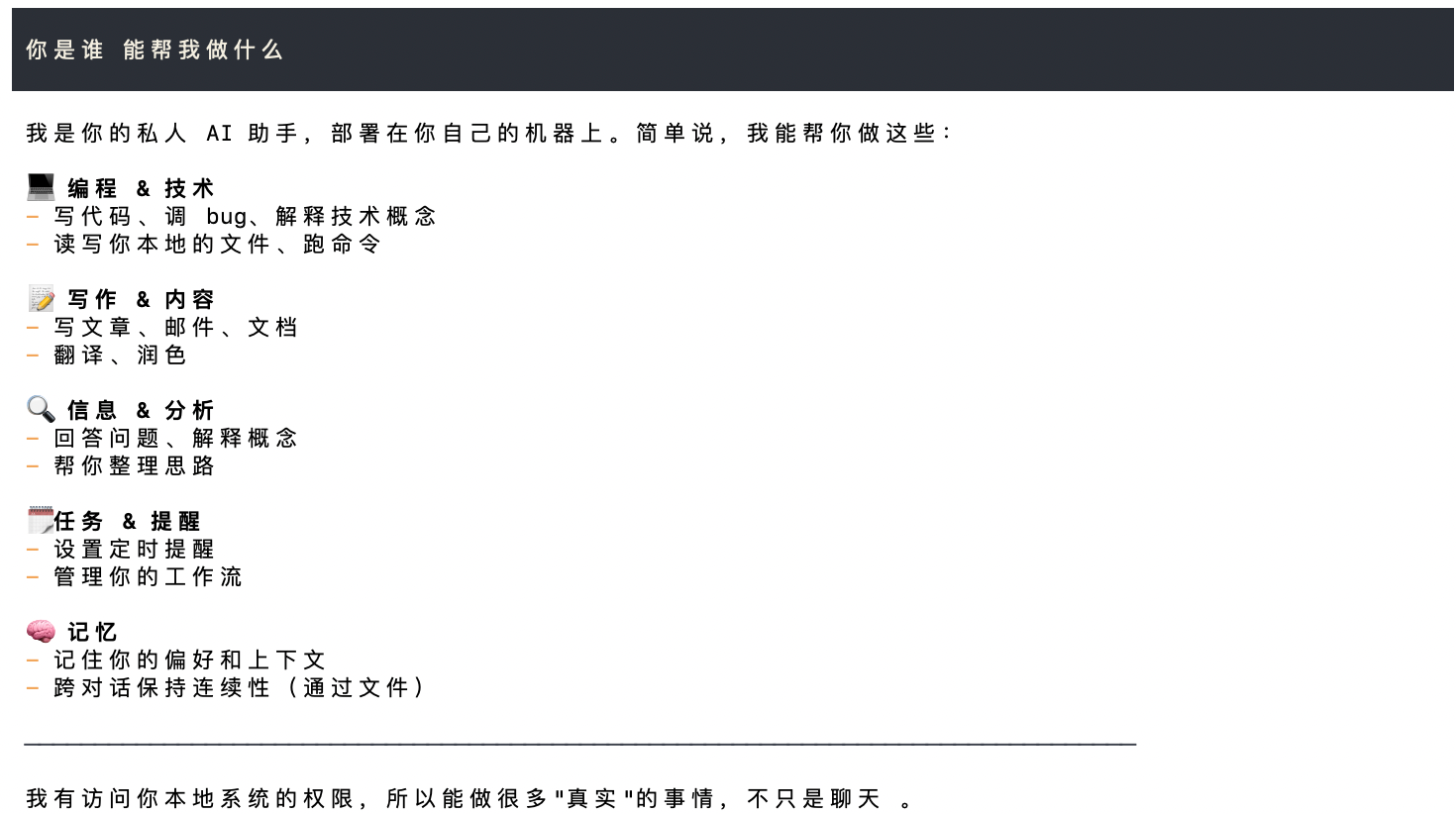
Switching models
Temporarily (current session only)
Type this command in the TUI:
/model qwen3.5-plusThe response model set to qwen3.5-plus confirms the switch.
Permanently (all new sessions)
Change agents.defaults.model.primary in your config file to the target model:
json
{
  "agents": {
    "defaults": {
      "model": {
        "primary": "haijing/claude-sonnet-4-6"
      }
    }
  }
}
Troubleshooting
Q1: Model not found, or empty replies
Check each of the following:
- The model ID is spelled correctly
- The provider name in the config matches the reference (if the config uses
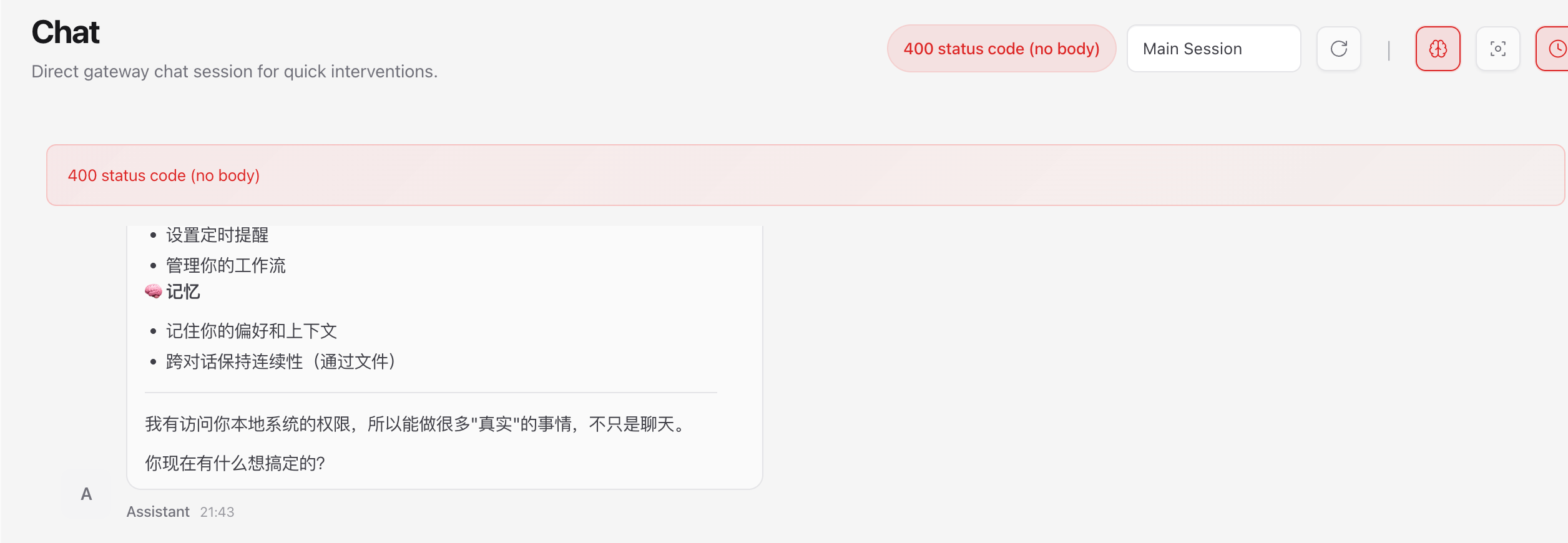
haijing, the reference must behaijing/claude-sonnet-4-6) reasoningmust be set tofalse- A 400 status code with no response body means your balance is exhausted — top up and try again
Q2: "command not found" when running openclaw
Possible causes and fixes:
| Cause | Fix |
|---|---|
| Installation failed | Run openclaw --version; a version number means it installed |
| Command not yet renamed | Try the older moltbot or clawdbot command instead |
| Version too old | Reinstall the latest: npm install -g openclaw@latest |
Related resources
Recommended reading
- Quick start — SeaWhale AI API basics
- API reference — the complete API documentation
- Model list — every available model