Sign in
Cline integration guide
Powerful extensionVSCode extensionUpdated: 2025-11-27Introduction
Cline is one of the most capable AI coding extensions for VSCode, able to understand and carry out complex programming tasks. Backed by SeaWhale AI models, it becomes a highly effective coding assistant.
Key capabilities
- 🤖 Code generation — write complete code from a description
- 📝 Automated execution — run commands, create files and modify code
- 🔍 Project understanding — analyze project structure and context
- 💡 Plan/Act modes — switch freely between planning and execution
- 🛠️ Tool integration — terminal, filesystem, browser and more
- 🌐 Many languages — Python, JavaScript, Java, Go and more
Cline vs other tools
| Feature | Cline | GitHub Copilot | Cursor |
|---|---|---|---|
| Type | VSCode extension | IDE integration | Standalone editor |
| Automation | ⭐⭐⭐⭐⭐ | ⭐⭐⭐ | ⭐⭐⭐⭐ |
| File operations | Fully automatic | Manual | Semi-automatic |
| Command execution | Supported | Not supported | Supported |
| Model choice | Configurable | Fixed | Fixed |
| Cost | Pay as you go | Subscription | Subscription |
Why Cline + SeaWhale AI?
- 🎯 More flexible: many models, switch whenever you like
- 💰 More economical: usage-based billing, no subscription
- 🚀 More capable: coder-specialized models tuned for code
- 🔒 More private: data is not stored, protecting your code
Before you begin
1. Software requirements
| Software | Version | Download |
|---|---|---|
| VSCode | 1.80.0+ | Download VSCode |
| Node.js | 16.0+ (optional) | Download Node.js |
Checking your VSCode version
bash
# Open VSCode
# Menu bar -> Help -> About
# Or press: Ctrl+Shift+P (Windows/Linux) / Cmd+Shift+P (macOS)
# Type "About" to see version information
2. Get a SeaWhale AI API key
- Open the SeaWhale AI console
- Sign up and log in
- Generate an API key on the API management page
- Make sure your account has enough balance or free credit
New user credit
- 🎁 New accounts receive free credit
- 💰 Usable across all model inference services
3. Choose a model
Through SeaWhale AI, Cline supports:
Recommended models
| Family | Model name | Strengths | Best for |
|---|---|---|---|
| Claude Sonnet | claude-sonnet-4-5 | • Strong at code • Accurate reasoning • 200K context | Complex projects Refactoring |
| Claude Opus | claude-opus-4.5 | • Highest capability • Deep reasoning | Architecture Complex algorithms |
| Gemini Pro | gemini-2.5-pro | • Multimodal • Long context • Fast responses | Document analysis Rapid development |
| Gemini Flash | gemini-2.5-flash | • Great value • Low latency | Everyday work Code completion |
Suggested configurations
Everyday development (recommended)
Main model: claude-sonnet-4-5
Fast model: gemini-2.5-flash
Why: excellent at code, accurate reasoning, quick responses
Demanding projects
Main model: claude-opus-4.5
Fast model: gemini-2.5-pro
Why: highest capability, deep reasoning
Installation
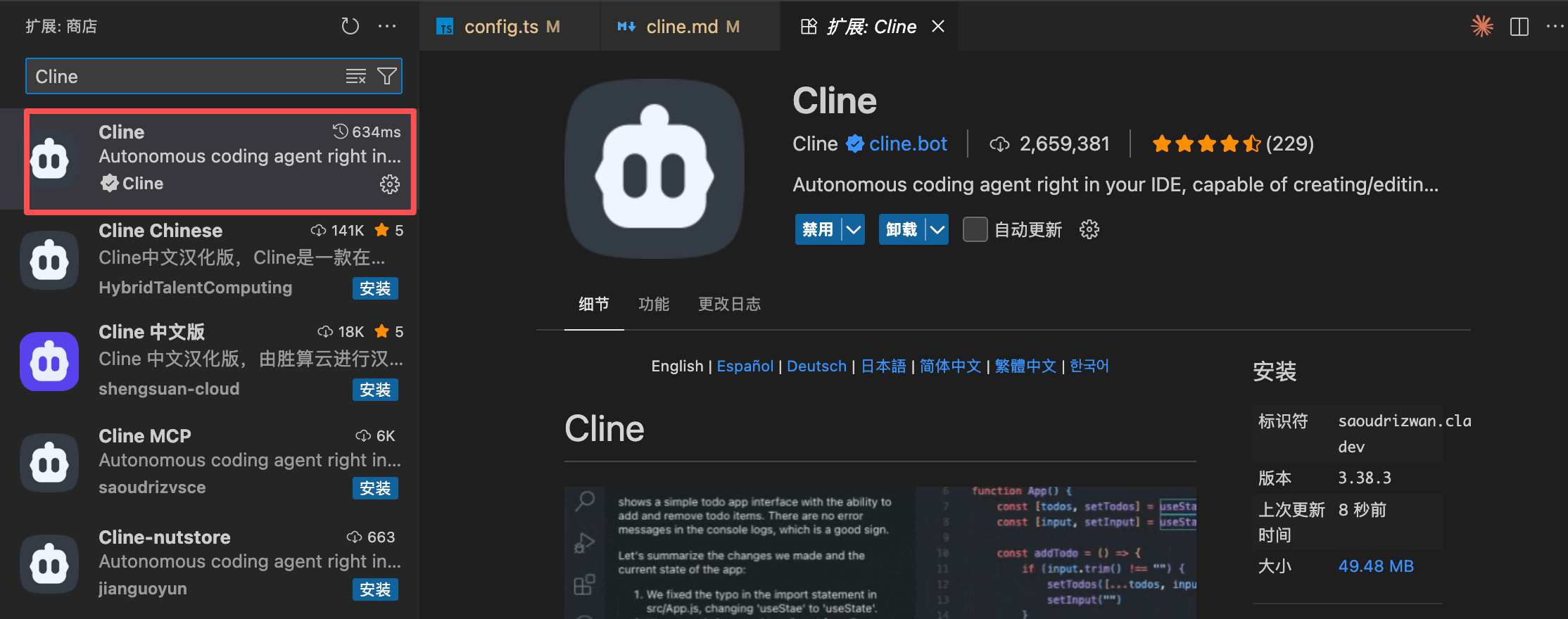
1. Install the Cline extension
Option 1: extension marketplace (recommended)
- Open VSCode
- Click the Extensions icon in the sidebar (or press
Ctrl+Shift+X/Cmd+Shift+X) - Search for "Cline"
- Find the Cline extension and click Install
Option 2: command line
bash
# Using the VSCode CLI
code --install-extension saoudrizwan.claude-dev
Installation notes
- ✅ A Cline icon appears in the sidebar after installation
- ✅ You need to configure an API key before first use
- ✅ Install the latest version for the best experience
2. Open Cline
There are two ways to open Cline:
Option 1: sidebar icon
- Click the Cline icon in the VSCode sidebar
Option 2: command palette
- Press
Ctrl+Shift+P(Windows/Linux) orCmd+Shift+P(macOS) - Type "Cline: Open"
- Press Enter
Configuration
1. First-time setup
With Cline open:
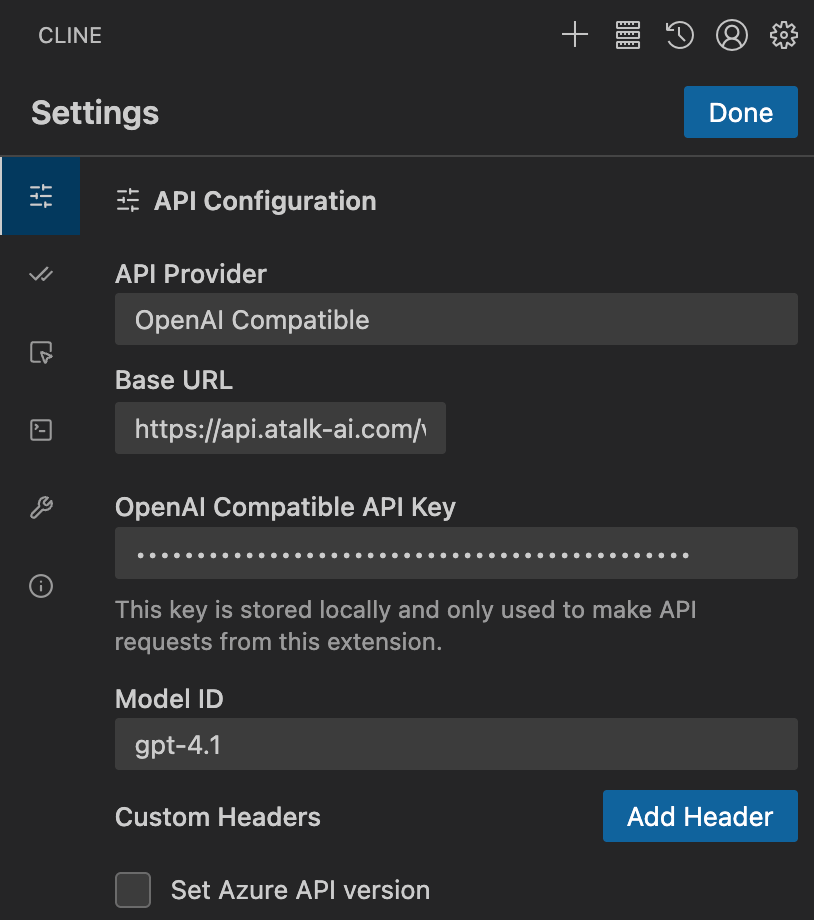
- Click "API Configuration"
- Fill in the settings from the table below
Existing users
If you have used Cline before, click the ⚙️ settings button in the top right to open the configuration screen.
2. Configuration parameters
| Setting | Recommended value | Description |
|---|---|---|
| API Provider | OpenAI Compatible | Recommended — supports more models |
| Base URL | https://api.atalk-ai.com/v2 | The SeaWhale AI compatible endpoint |
| API Key | sk-****** | Your SeaWhale AI API key |
| Model ID | claude-sonnet-4-5 | A code-focused model is recommended |
About the API Provider setting
OpenAI Compatible (recommended)
- ✅ Wider model choice
- ✅ More complete feature support
- ✅ Continuously updated
- ⚠️ Requires the correct Base URL
3. Step-by-step setup
Step 1: choose the API provider
API Provider: OpenAI CompatibleStep 2: set the Base URL
text
Base URL: https://api.atalk-ai.com/v2Step 3: enter your API key
API Key: sk-*****Security
- 🔒 Never share your API key
- 🔒 Never commit it to a public repository
- 🔒 Rotate your API key periodically
- 🔒 Regenerate it immediately if it leaks
Step 4: pick a model
Recommended:
Model ID: claude-sonnet-4-5Step 5: finish
- Click "Done" in the top right to save
Usage guide
Plan vs Act mode
Cline offers two working modes for different situations:
| Mode | How it works | Characteristics | Best for |
|---|---|---|---|
| Plan mode | Plans without acting | • Gathers information • Breaks down tasks • Designs an approach • Does not modify files | Requirements analysis Design Architecture discussion |
| Act mode | Executes directly | • Creates files • Modifies code • Runs commands • Automates work | Implementation Bulk refactoring Automated tasks |
Switching modes
Switch between Plan and Act at any time at the bottom of the Cline chat panel.
Auto-approve permissions
The Auto-approve control above the input box governs how much Cline does without asking:
| Permission | What it allows | Impact when enabled | Recommendation |
|---|---|---|---|
| Read | Read files | Higher token usage | ✅ Reasonable to enable |
| Write | Write files | Modifies code automatically | ⚠️ Enable with care |
| Execute | Run commands | Runs scripts automatically | ⚠️ Enable once understood |
Important
- ⚠️ Auto-approve can substantially increase token usage
- ⚠️ Write permission modifies code automatically and may overwrite existing files
- ⚠️ Execute permission runs commands automatically — make sure that is safe
- ✅ Enable these only after you understand how Cline behaves
- ✅ Beginners should start in Plan mode and confirm each action manually
Worked examples
Example 1: Plan mode — designing an approach
Scenario: design a quicksort algorithm
markdown
Write me a debounce function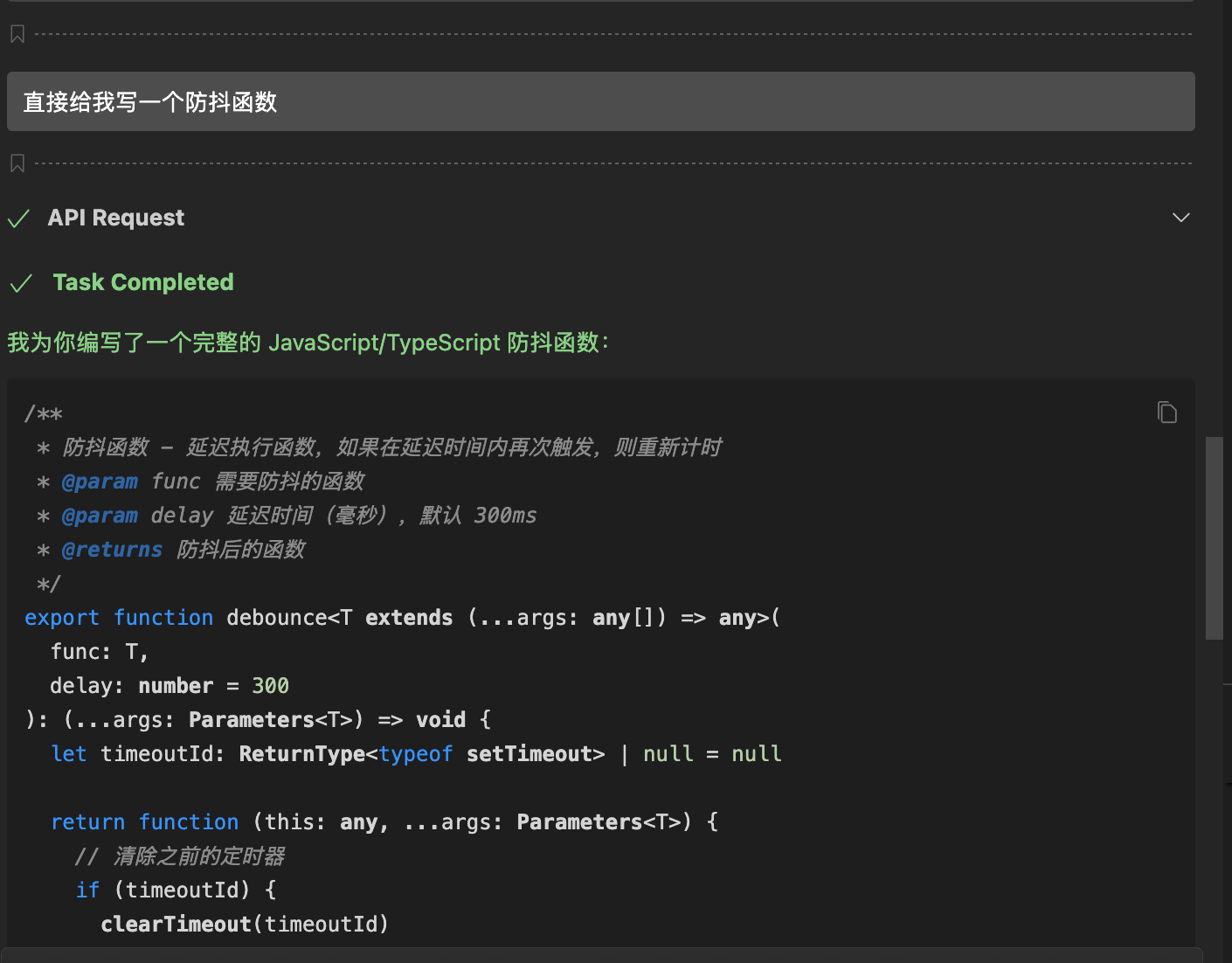
Advantages of Plan mode
- 💡 Plan first, execute second — clearer thinking
- 💰 Lower token usage
- 🛡️ No accidental file changes
- 📚 Good for learning and discussion
Example 2: Act mode — automatic implementation
Scenario: generate and create the code file automatically
markdown
Write me a debounce function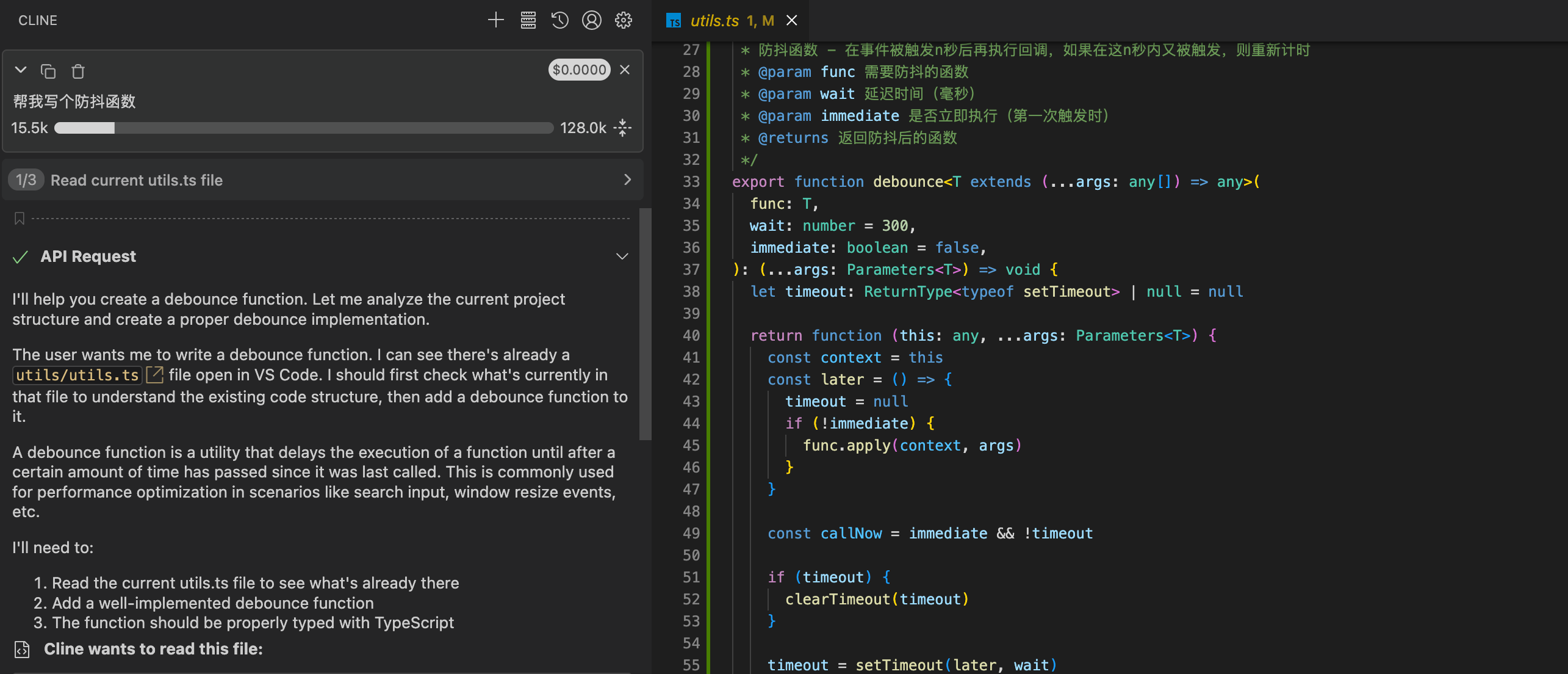
Things to watch in Act mode
- ⚠️ Files are created and modified automatically
- ⚠️ Token usage is higher
- ⚠️ Use Auto-approve carefully
- ✅ Best for automation and bulk operations
Saving tokens
Using Cline thoughtfully can substantially reduce token usage and cost.
1. Reduce irrelevant file scanning
Cline scans project files to build context, which consumes a lot of tokens.
How to optimize
✅ Start in the specific directory
bash
# Wrong: starting from a parent directory
cd ~/projects
code .

# Right: starting inside the project
cd ~/projects/my-app
code .
✅ Exclude files with .gitignore
gitignore
# Exclude dependency directories
node_modules/
venv/
__pycache__/
.pytest_cache/

# Exclude build output
dist/
build/
*.pyc
*.pyo

# Exclude large files
*.pdf
*.zip
*.tar.gz
*.mp4
*.mov

# Exclude logs
*.log
logs/
✅ Use .clineignore
Create a .clineignore file in your project root:
# Cline-specific ignore file
test/
docs/
*.md
*.txt
2. Compact conversation history
Cline keeps prior conversation as context, so longer conversations cost more.
Ways to compact
| Method | Action | Effect | When to use |
|---|---|---|---|
| Compact button | Click "Compact Task" | Summarizes and shrinks history | Long conversations |
| Command | Type /compact | Triggers compaction manually | Any time |
| New session | Click "New Chat" | Clears history entirely | Starting a new task |
When to compact
- ✅ After finishing a complete feature
- ✅ Once the conversation passes about 10 turns
- ✅ Before switching to a new task
- ✅ When token usage climbs noticeably
3. Give precise instructions
Vague instructions make Cline scan more files and try more approaches.
Comparison
| ❌ Vague | ✅ Precise |
|---|---|
| "Optimize code" | "Refactor parse_json in src/utils/parser.py to handle errors with try-except" |
| "Fix the bug" | "Fix the division-by-zero at line 45 of app.py by checking divisor != 0" |
| "Add a feature" | "Add a validate_email method to the User class using a regex for the format" |
| "Improve performance" | "Optimize the queries in database.py and add an index on the user_id field" |
4. Break large tasks apart
❌ Everything at once (expensive)
Build a complete e-commerce system with user management, product management,
order management, payment integration, analytics and an admin dashboard.
✅ Step by step (cheaper)
Step 1: design the database schema (users, products, orders)
Step 2: implement the registration and sign-in APIs
Step 3: implement product CRUD endpoints
Step 4: implement the shopping cart
Step 5: implement order creation and payment
5. Use Plan mode for discussion
For work that does not need to run immediately, Plan mode cuts token usage substantially.
| Scenario | Recommended mode | Why |
|---|---|---|
| Technical questions | Plan | You want advice, not code changes |
| Code review | Plan | Analyze the code and suggest improvements |
| Architecture design | Plan | Discuss the approach before building |
| Learning | Plan | Explain concepts without writing code |
| Automated development | Act | Create or modify files in bulk |
| Rapid implementation | Act | Generate code immediately |
6. Token usage comparison
| Task type | Plan mode | Act mode | Savings |
|---|---|---|---|
| Simple questions | 200–500 | 1000–2000 | 60–75% |
| Code explanation | 500–1000 | 2000–5000 | 60–80% |
| Design work | 1000–2000 | 5000–10000 | 70–80% |
| Code generation | — | 2000–5000 | — |
| Project refactoring | — | 10000+ | — |
Best practice
- While discussing → use Plan mode
- Once the approach is settled → switch to Act mode
- Compact regularly → use the Compact feature
- When the task is done → start a new session
FAQ
Q1: Why do I get a 401 "Incorrect API key provided" error?
Error message:
401 Incorrect API key providedPossible causes:
Cause 1: the API key does not match the Base URL
| Base URL | Required API key |
|---|---|
https://api.atalk-ai.com/v2 | SeaWhale AI key |
Fix:
- Check that the Base URL and API key belong together
Q2: Why are tokens consumed so quickly?
Why it happens:
Automatic file scanning
- Cline reads relevant project files
- Large projects can mean hundreds of files
- Files are re-read for each conversation
Multiple API calls
- Act mode calls the API repeatedly
- Each operation is a separate request
- Automatic retries add more calls
Accumulating context
- Conversation history keeps occupying tokens
- Longer conversations cost more
- Uncompacted history is retained indefinitely
Fixes:
| Problem | Fix | Effect |
|---|---|---|
| Too much file scanning | Exclude irrelevant files with .gitignore | 50–80% less |
| Very long history | Use Compact regularly | 30–50% less |
| Irrelevant files in scope | Open VSCode inside the specific project | 40–60% less |
| Simple Q&A | Use Plan mode | 60–80% less |
| All Auto-approve enabled | Enable permissions only when needed | 20–40% less |
Q3: How else can I save tokens?
See the saving tokens section. The main techniques:
✅ Environment
- Start inside the specific project directory
- Configure .gitignore and .clineignore
- Delete or move large files
✅ Habits
- Give precise, specific instructions
- Break complex tasks into smaller ones
- Use Plan mode for simple questions
- Compact conversation history regularly
✅ Permissions
- Turn off Auto-approve where it is not needed
- Confirm important operations manually
- Be careful with Execute permission
Q4: How does Cline differ from Claude Code?
| Feature | Cline | Claude Code |
|---|---|---|
| Type | VSCode extension | CLI tool |
| Interface | Graphical | Terminal |
| Automation | Visual controls | Command driven |
| File operations | Creates/modifies automatically | Conversational |
| Learning curve | Lower | Higher |
| Best for | Project development | Scripting |
| IDE integration | Native to VSCode | Runs standalone |
Which to choose:
- 🎯 VSCode users → Cline (seamless integration)
- 🎯 Terminal enthusiasts → Claude Code (command line)
- 🎯 Prefer a GUI → Cline (visual)
- 🎯 Automation scripts → Claude Code (batch friendly)
Best practices
1. Suggested project structure
A clear structure helps Cline understand your project:
my-project/
├── .vscode/
│   └── settings.json      # VSCode configuration
├── .cline/
│   └── config.json        # Cline configuration (if any)
├── .gitignore             # Git ignore file
├── .clineignore           # Cline ignore file
├── src/                   # Source code
│   ├── main.py
│   ├── utils/
│   └── models/
├── tests/                 # Tests
├── docs/                  # Documentation
├── README.md              # Project readme
└── requirements.txt       # Dependencies
2. Suggested workflow
A recommended way to work with Cline:
1. Discuss requirements in Plan mode
   ↓
2. Settle on an approach
   ↓
3. Switch to Act mode
   ↓
4. Generate the code
   ↓
5. Test and verify
   ↓
6. Does it pass?
   → Yes: compact the history → move on to the next task
   → No: keep debugging
3. Security recommendations
Security
- 🔒 Never hard-code API keys in your source
- 🔒 Never commit API keys to Git
- 🔒 Rotate API keys periodically
- 🔒 Monitor API usage
- 🔒 Be careful with Auto-approve on sensitive projects
- 🔒 Review code before committing
If your API key leaks:
- Open the SeaWhale AI console immediately
- Delete the exposed API key
- Generate a new one
- Update your local configuration
- Review your call history for anything unexpected